


As you know, for Intermediate photographers, it’s hard to find free mobile applications to edit RAW images.
Yeah, you can use Lightroom and other paid apps/software.
But first, if you don’t know anything about RAW images and why you need to move on from JPEG to RAW, then you can refer to the article below.
Recently, I found an Amazing application called Snapseed (available for Android and iOS) that you can use to edit your RAW images for free.
So now, without talking more about this stuff, let’s just learn how we can edit RAW images using Snapseed for FREE.
How to Edit RAW Photos in Snapseed (Complete Guide)
These are three simple steps you need to follow to edit raw photos in snapseed.
- Capture Raw Image
- Download Snapseed
- Update/Edit your Image
Now, let me show you a valid way to do snapseed raw editing in 2 minutes…
Step 1: Capture RAW Images
This is the very first step to proceeding further, you need to shoot some Good Images in RAW format.
If you own any DSLR or even a Mirrorless camera, then go to the camera settings and change the image format to RAW.
You can select RAW + JPEG so you’ll get one RAW and one JPEG copy of your image.
For a better comparison, you can do this.
- Know why the RAW format image is better than JPEG
- Why Shooting in RAW is Essential for Serious Photographers
Step 2: Import RAW Photos into Snapseed
This is the second point, which you need to perform (most important).
If you’re an Android user, then you can download snapseed from here, or if you’re an IOS user, then you can download it from here.
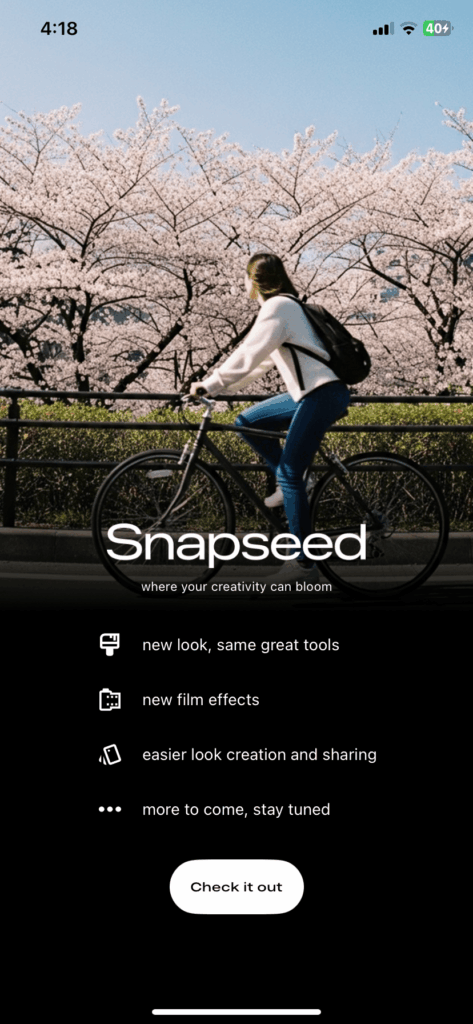
If you own an Iphone then the Application will look like this…
Step 3: Edit RAW Images Like a Pro Usign Snapseed
This is the final step that you need to perform to edit RAW images using Snapseed.
Just load your RAW file on snapseed and wait for some time.
For the Android user, if you’re not able to load a RAW file from the gallery, then just open the image directly into snapseed.
As you know, RAW files contain all the details, so they take more space and it may take some time to load the image.
Once you upload your image, you’ll see this kind of UI.
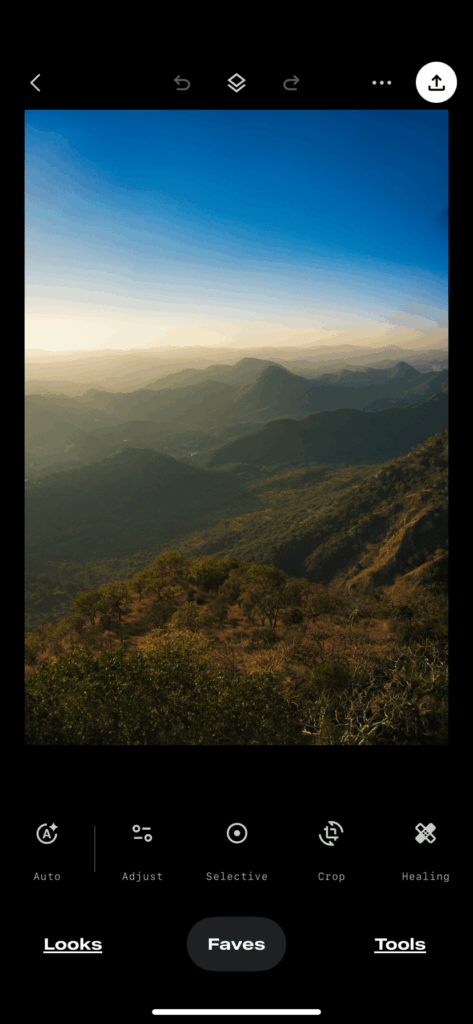
As you can see, earlier for the Android version of their app, they show RAW symbol at the bottom left, which verifies that it’s a RAW image, but for the latest 2025 Snapseed IOS app, it’s not there..
After a successful RAW image upload, you can start editing.
You’ll get these options to edit your RAW image directly.
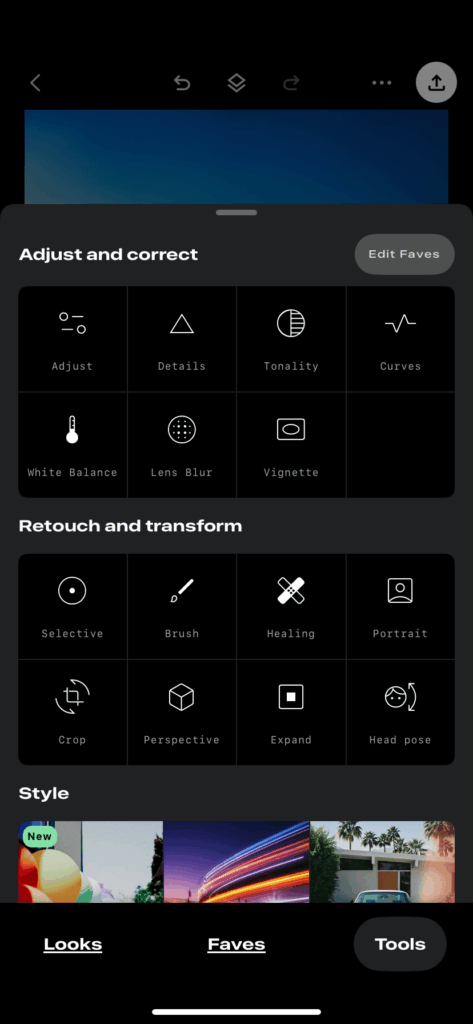
As you see, you can play with Exposure, Highlights, Shadows, Contrast, Saturation, Temperature, and Tint under the Adjust menu.
For Sharpness and structure, you can pick the details menu.
You can even set up a diffrent white balance as your requirement.
If you want to edit your images as you’re editing your JPEG using Snapseed, then just go back and edit.
As you can see, it’s very easy and simple to edit RAW images on snapseed for FREE.
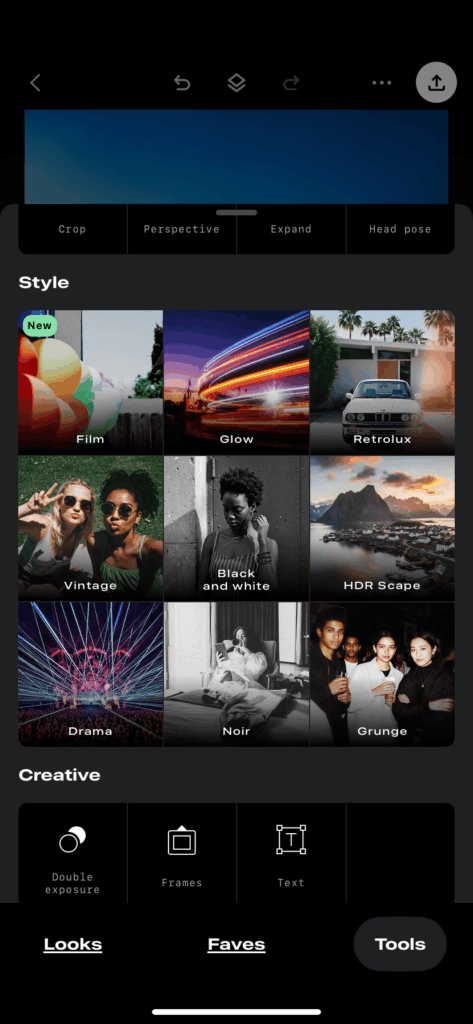
As you can see, the above image, you can even pick diffrent styles and apply them to your RAW images to edit like a pro.
Here’s a Little Before & After editing a RAW image using Snapseed.

I just played with some basic editing tools and curves to get this image edited in 2 minutes.
More things you can do with Snapseed
Snapseed RAW Editing: Frequently Asked Questions
Here’s a List of some most commonly asked questions by users who edit images or want to edit images using snapseed.
Can Snapseed Edit RAW Files Safely?
Yes, Snapseed is safe and suitable for RAW photo editing.
Under the hood, it’s not overwriting your original image, plus it offers non-destructive editing.
If you’re working with DNG files, then snapseed is a perfect + free editor you can try.
Why Do RAW Photos Look Darker in Snapseed? (Quick Fix)
RAW files appear flat or darker because they are unprocessed by default.
Snapseed displays the unedited RAW data, hence you need to play with exposure, contrast, and stuff to bring out the details.
Does Snapseed Support RAW Files for Panoramic Photos?
Snapseed handles wide-angle & panoramic RAW files reasonably well.
But adding heavy perspective or lens correction tools may introduce distortion.
So make sure you don’t go all in while editing using these tools and preview carefully.
How to Edit RAW Photos for Free: Mobile vs Desktop
For casual use, mobile editing with snapseed is fast and effective (And free too:D).
However, for professional color grading and high-resolution exports, use desktop tools like Lightroom, Darktable (it’s a FREE RAW editor), or Capture One offer more control and clarity.
Start Editing RAW Photos in Snapseed Today
If you’re an intermediate photographer and want to explore how to edit RAW images, then you can use snapseed.
Once you gain some real experience, then you can move on to Lightroom for mobile and PC, as you know it’s a paid option we’ve.
If you know of any alternative application to edit RAW images for FREE, then comment below and let us know.
Thank you, and have a good day.
If you’re not able to load images from snapseed, then just make sure you’ve given permission to access your images.
To resolve this, snapseed can’t allow loading images. Go to application settings and give permission to access your photos.
So you can easily load the image and create double exposure images using snapseed.
More About Editing
- Important photo editing tips for every photographer | photo editing guide
- Luminar Neo: Your Path to Professional Photo Editing (AI-based)
- Top 10 AI-Based Photo Editors For Photographers to Try In 2025
- Luminar Mobile Photo Editor Review | AI Features and Mod Myths
- Edit Like A Pro | iPad Video Editing Apps For Creators (Best of 11)
Read More Articles
- Vanishing Points in Photography | Composition Tips To Get Bangers
- What is a One-Point Perspective In Photography? & How To Apply It
- 7 Proven & Unique Ways to Earn As a Photographer In India
- What Is a Panning Shot in Photography & How to Master it?
- 27 Great Photography Blogs You Need To Follow In 2025 | Indian Edition
- 71+ Soulful Nature Photography Quotes to Spark Your Inner Artist


Hello. I use Snapseed on my iPad pro, and shoot primarily with the Sony a7RIV in RAW. When I import my photos into Snapseed, I do see the image on the screen, but the image is not full screen, and no RAW icon is at the bottom left. In the preview, it is indicated the the file is RAW, but once the image is open and on the screen, the file size is a tiny 1.7 mp. When editing, not all the RAW tools (like exposure) show up, and not all the tools that do show up function. I know that Snapseed now has tools to process RAW files, but why aren’t they showing up in my app? I checked to see if there was another version of Snapseed available, but this does not seem to be the case. Please advise! Thank you!
Hello Karen, Hope you’re doing good.
As far as I know, Snapseed hasn’t been updated in years and I’m pretty sure that’s the main reason behind your issue. but FYI somehow RAW image editing is working fine for me (I’m using iPhone 11 ), so you can use your smartphone and give it a try. and as you know snapseed just creates a low res JPEG preview instead of an original RAW file without any warning so if you’re doing professional work then you better choose lightroom over snapseed.